

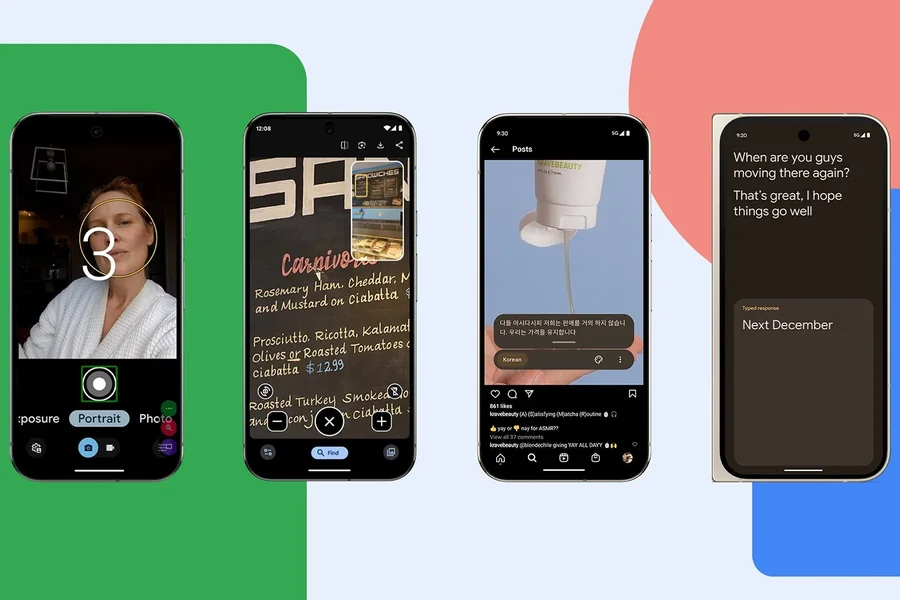
Google Pixel Accessibility Features Guide helps users understand the tools that make their smartphones easier to see, hear, operate, and navigate. Google Pixel devices include a range of accessibility options designed for people with different abilities, preferences, and everyday needs. Whether you want larger text, spoken feedback, captions for videos, or easier ways to control your phone, these features can help create a more comfortable experience. Accessibility tools are not only for people with permanent disabilities. They can also help anyone who experiences temporary difficulties, such as reading a screen in bright sunlight, using a phone in a noisy environment, or operating a device with one hand. The exact options available may vary depending on your Pixel model, Android version, language, and region. Learning where these settings are located and how they work can help you personalize your device. With a few adjustments, you can make everyday activities such as reading messages, watching videos, answering calls, and navigating apps more convenient.
What Are Google Pixel Accessibility Features?
Google Pixel accessibility features are built-in tools that help people interact with their phones in ways that suit their individual needs. They cover several areas, including vision, hearing, mobility, speech, and general ease of use. Many can be activated directly from the Accessibility section of the Settings app. For users with low vision, options such as display size, text size, magnification, and screen readers can make information easier to access. People who are deaf or hard of hearing may benefit from captions, sound notifications, and hearing-device support on compatible devices. Users who find touch controls difficult can explore alternative navigation and interaction options. These settings can also work together. For example, someone might increase text size, enable high contrast where supported, and use Select to Speak to hear selected text. Another person may prefer captions for video content and sound notifications for important environmental sounds. To locate the main tools, open Settings and select Accessibility. Browse the categories available on your device and try one feature at a time. If a particular option is missing, check your Android version and device compatibility before assuming it is available on every Pixel phone. For readers who enjoy learning about Android features, phone settings, and practical mobile technology tips, pixelspinx can serve as a related resource while you explore ways to personalize your Google Pixel experience.
Vision and Display Accessibility Tools
A smartphone should present information in a way that feels comfortable to read. Pixel accessibility settings include several options for adjusting how text, images, and other screen elements appear. These tools can be especially useful if you have difficulty reading small text or distinguishing certain visual details.
1. Adjust Text Size and Display Size
Text size controls how large written content appears in supported apps, while display size changes the overall scale of interface elements. Increasing these settings can make menus, messages, and buttons easier to read and select. To adjust them, open Settings, go to Accessibility, and look for text and display size controls. Move the available sliders until the screen feels comfortable. Some apps may handle these adjustments differently, so check your frequently used apps after changing the settings. Very large text can cause some content to wrap onto additional lines or require more scrolling. Try different settings until you find a balance between readability and convenience.
2. Use Magnification
Magnification lets you enlarge parts of the screen when small details are difficult to see. Depending on your device and Android version, you may be able to activate magnification through an accessibility shortcut or a gesture. This feature can help when reading small labels, examining images, or viewing details on a webpage. You can zoom in when needed and return to the normal view afterward. Magnification is useful when you do not want every element on the phone to remain enlarged. It gives you a way to inspect specific areas without permanently changing the display size.
3. Try TalkBack and Select to Speak
TalkBack is a screen reader that provides spoken feedback about items on your screen. It can announce interface elements and help users navigate their devices without relying entirely on sight. Because TalkBack changes how touch gestures work, new users may benefit from guided practice before relying on it for everyday tasks. Select to Speak offers a different approach on supported devices. It lets you select text or on-screen content for spoken playback, which can be helpful when reading long articles or messages. Choose the tool that best fits your needs. TalkBack is designed for comprehensive screen-reader navigation, while Select to Speak is useful when you mainly want selected content read aloud.
4. Explore Color and Contrast Options
Pixel devices may offer color correction, color inversion, and other display adjustments to help make content easier to distinguish. These tools can be useful for users who have difficulty identifying certain colors or reading text against particular backgrounds. Color correction changes how colors are displayed, while color inversion changes many screen colors to their opposites. The results can vary across apps, images, and media, so test each setting with the content you use most often. If you use your phone for long periods, also consider choosing a comfortable brightness level and enabling dark theme if you prefer it. These are general display preferences rather than a guaranteed solution for every visual difficulty.
Hearing, Captions, and Sound Notifications
Google Pixel accessibility tools can make audio-based information easier to follow and help users notice important sounds. These features are useful for people who are deaf or hard of hearing, as well as anyone who watches videos without sound or needs extra support in noisy environments.
1. Turn On Live Caption
Live Caption can generate captions for speech from supported audio playing on your phone. Depending on the device and content, it may work with videos, podcasts, calls, or other audio experiences. To check availability, open Settings and search for Live Caption. If supported, turn it on and review the available controls. You may be able to activate captions using the volume controls when audio is playing. Caption accuracy depends on speech clarity, language support, and the audio source. Names, technical terms, accents, and background noise may lead to errors, so captions should not always be treated as a perfect transcript.
2. Use Sound Notifications
Sound Notifications can alert you to certain sounds around you, depending on the feature’s supported sound categories and device configuration. These may include events such as alarms, doorbells, or other important household sounds. This option can provide additional awareness when you cannot easily hear sounds from your surroundings. To explore it, open the Accessibility settings and look for Sound Notifications or the relevant sound-detection feature. Do not rely on sound notifications as your only safety system. Detection can be affected by distance, background noise, device placement, and other environmental conditions.
3. Check Hearing Device Compatibility
Some Pixel phones support connecting compatible hearing aids or other hearing devices through Bluetooth or supported accessibility options. Available connection methods depend on the hearing device, phone model, and software. If you use a hearing device, consult its manufacturer’s instructions and your Pixel’s Bluetooth or Accessibility settings. You may need to pair the device or configure specific audio settings before using it. When choosing a hearing device, confirm compatibility with the exact Pixel model you own. Not every hearing aid supports every connection feature.
Easier Navigation and Phone Control
Accessibility is also about making a phone easier to operate. Pixel devices offer settings that can simplify touch interaction, provide alternative control methods, and reduce the effort needed for common tasks.
1. Increase Touch and Interaction Comfort
If you sometimes tap the wrong button or have difficulty using small controls, check your phone’s available touch and interaction settings. Depending on your Android version, options may include timing adjustments, accessibility menus, or other ways to make interaction more manageable. An Accessibility Menu, when available, can provide an on-screen set of controls for certain phone actions. This may help users who find physical buttons or complex gestures difficult to operate. Take time to explore each option and test it before making it part of your routine. A setting that helps one person may feel less convenient to another.
2. Use Voice Access
Voice Access can help users control supported phone functions with spoken commands. Depending on the setup and supported language, it can assist with opening apps, navigating screens, and interacting with interface elements. This can be particularly useful for people who have difficulty using touch gestures or who need a hands-free way to perform certain actions. To get started, search for Voice Access in your phone’s Accessibility settings and follow the setup instructions if the feature is available. Voice recognition may be less reliable in noisy environments or when commands are not supported. Check which commands work on your device and keep another control method available when possible.
3. Set Up Accessibility Shortcuts
Accessibility shortcuts can make frequently used features easier to turn on and off. Depending on the tool and device, a shortcut may use a button combination, a gesture, or an on-screen control. For example, you might create a shortcut for magnification or another accessibility service that you use regularly. This saves you from opening Settings every time you need the feature. Before enabling a shortcut, check how it is activated and whether it could conflict with other gestures. Practice using it so you can switch features quickly when needed.
How to Personalize Your Pixel for Daily Use
The most useful accessibility setup depends on your personal routine. Rather than activating every option, start with the challenges you encounter most often and choose settings that address them directly. If reading is difficult, begin with text size, display size, and magnification. If you prefer audio feedback, explore TalkBack or Select to Speak. If you have trouble following spoken content, test Live Caption. If touch controls are uncomfortable, investigate Voice Access and other supported interaction tools. Make one change at a time and use your phone normally for a day or two. This makes it easier to identify which settings improve your experience and which ones need adjustment. You can return to Accessibility settings whenever you want to change them. Keep your Pixel updated because software updates may add features, improve existing tools, or change menu locations. However, an update does not guarantee that every feature will become available on every device or in every country. It can also help to learn the shortcuts for your most-used accessibility features. Once you know how to activate them quickly, you can adapt your phone to different situations, such as reading outdoors, watching a video in a quiet room, or using voice controls when your hands are occupied. If you are helping a family member configure their phone, ask which tasks feel difficult and let them choose the settings they prefer. Accessibility should support independence and comfort rather than force everyone to use a device in the same way.
Final Thought
The Google Pixel accessibility toolkit offers practical ways to make a smartphone easier to read, hear, navigate, and control. Features such as TalkBack, magnification, Live Caption, Sound Notifications, and Voice Access can help users adapt their devices to different needs and situations. The best approach is to begin with one or two useful settings, test them in everyday situations, and adjust them as your needs change. Remember that availability and behavior can vary by Pixel model, Android version, language, and region. With the right setup, your Pixel can become more comfortable and convenient to use. Explore the Accessibility menu at your own pace, and choose the tools that make the biggest difference in your daily routine.
FAQs
1. Where can I find accessibility settings on a Google Pixel?
Open the Settings app and select Accessibility. You can browse the available options or use the Settings search bar to find a specific feature.
2. Does every Google Pixel phone have the same accessibility features?
No, available features can vary by Pixel model, Android version, language, region, and compatibility requirements.
3. What is TalkBack on Google Pixel?
TalkBack is a screen reader that provides spoken feedback about items on the screen and helps users navigate their phones without relying entirely on sight.
4. Can Google Pixel phones display captions for videos?
Supported Pixel devices can use Live Caption to generate captions for compatible audio and video content, although language support and accuracy may vary.
5. How can I make text easier to read on my Pixel?
Open Accessibility settings and adjust text size or display size. You can also try magnification or other supported display adjustments.
6. Can I control my Google Pixel using my voice?
Yes, Voice Access can provide spoken control for supported functions when available and configured. Its capabilities depend on the device, language, and software version.
7. Are Google Pixel accessibility features only for people with disabilities?
No, these tools can help anyone who wants a more comfortable phone experience, including people dealing with temporary vision, hearing, or interaction challenges.
